
Free Golf Handicap Tracker
Improve your Scores
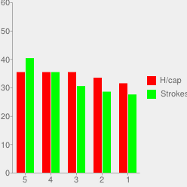
The Golf Mentor handicap tracker keeps track of your scores, handicaps, and much more. Using it, you can nominate what was the weakest and strongest aspect of your round as well make detailed comments. If you do not have an official handicap, you can use the Mentor online golf handicap. The Mentor handicap goes up to 99 strokes over par, so it is perfect for beginners. A Mentor Handicap cannot be used in an official golf competition but can be used in matches with your friends. The Mentor handicap uses Simple Stroke Control rather than net double bogey and only requires entry of the final strokes above par rather than needing to enter every hole. Right now there is included a free 21 trial of premium membership.
If you want an official handicap you should visit your local club. It is likely to be using the World Handicap System. This page has more information on the differences between a Mentor handicap and an official handicap.
The following provides information on the functionality once you have joined the Golf Mentor.
How to Post Golf Games?
When you have joined tap on the "Post Game" button in the right hand menu. This is where you post the results from your games that you want to count towards your Goals. The following explains each of the possible selection boxes:
Gross Score: You should enter into the Gross Score box, the total number of strokes you took for this round. For example, if you took 90 strokes, enter 90. If you are using a Handicap Index, then you should use Equitable Stroke Control in calculating your score. A round can be less than 18 holes, but you need to be consistent, i.e if you choose 9 holes, all your subsequent posts for your current Goals should be 9 holes. In order to maintain the integrity of your handicap, editing the score of a game only changes the handicap if that game is your most recent.
Stableford: If you are using the traditional handicap system, then a Stableford box will appear for your convenience. You can enter either your stableford score or your gross score. The one you change is the one that is used, and the other is calculated from it. If you change both and they do not agree, the gross score is used and you will be warned. If you play a round other than a stroke or stableford round, convert your result to a gross score and enter it in the Gross Score box.
Handicap: If you are using a traditional handicap method, enter the handicap you used when you played the round. If you are using a Handicap Index, then you should enter the handicap index that was used when you played the round, rounded to the nearest whole number. If you are using Mcap, then you do not need to enter a handicap as the Mentor calculates it for you
Slope Rating: If you are using a Handicap Index, then you need to enter the slope rating of the course you played on. If you do not know the slope rating, just ignore this input.
Place: You can enter here the Place where the round was played.
Best Aspect: You need to select the Best Aspect of your round. This allows you to reinforce the positive aspects of the round, an important part of improving your mental game.
Weakest Aspect: Identifying the weakest aspect of your round assists you to work out what is the most consistently weakest part of your game. Your weakest aspect can change from game to game, so the Mentor analyses your weaknesses to help you to identify what the focus should be of your next practice cycle.
Enjoyment: A key part of the Golf Mentor system is the notion that the more you enjoy the golf, the better you will play. By noting your level of enjoyment, it will be possible to keep track of how much you are enjoying your golf, and work towards improving your level of enjoyment.
Comment: You can add detailed notes on your game here
How to Post Practice Sessions?
In order to post information on a practice session, then tap on the "Post Practice" button in the right hand menu. The following explains each of the possible selection boxes:
- Duration: You need to select the length of time of your practice session.
- Place: Here you can enter the place where the practice session took place.
- Focus: You need to select the focus of your practice session.
- Outcome: You need to select the outcome of your practice session.
- Comment: You can add detailed notes on your practice session here
How to Post Golfing Lessons?
In order to post information on a lesson, then tap on the "Post Lesson" button in the right hand menu.This form is to used record the outcomes of your lesson. The following explains each of the possible selection boxes:
- Duration: You need to select the length of time of your practice session.
- Place: Here you can enter the place where the practice session took place.
- Focus: You need to select the focus of your practice session.
- Outcome: You need to select the outcome of your practice session.
- Comment: You can add detailed notes on your practice session here